Prerequisites:
Access to an admin account on the Rise Up platform.
Necessary permissions to manage email settings.
Access Emails
Navigate through the sidebar menu and select the 'Emails' section to view management and viewing options for emails.
View Sent Emails
Go to 'View' under the 'Emails' section, use the filter menu to sort emails by status (received, failed, not sent, date, or recipient).
Click on the eye icon next to an email to access detailed information or to resend the email.
This section is particularly useful for resending emails in case of a sending failure.
More importantly, it allows you to preview what your users receive and make corrections to any incorrect information if necessary.
Manage Email Templates
Choose 'Manage Templates' in the 'Emails' section, select a template to edit.
You can edit the content, format, and incorporate dynamic variables for personalization.
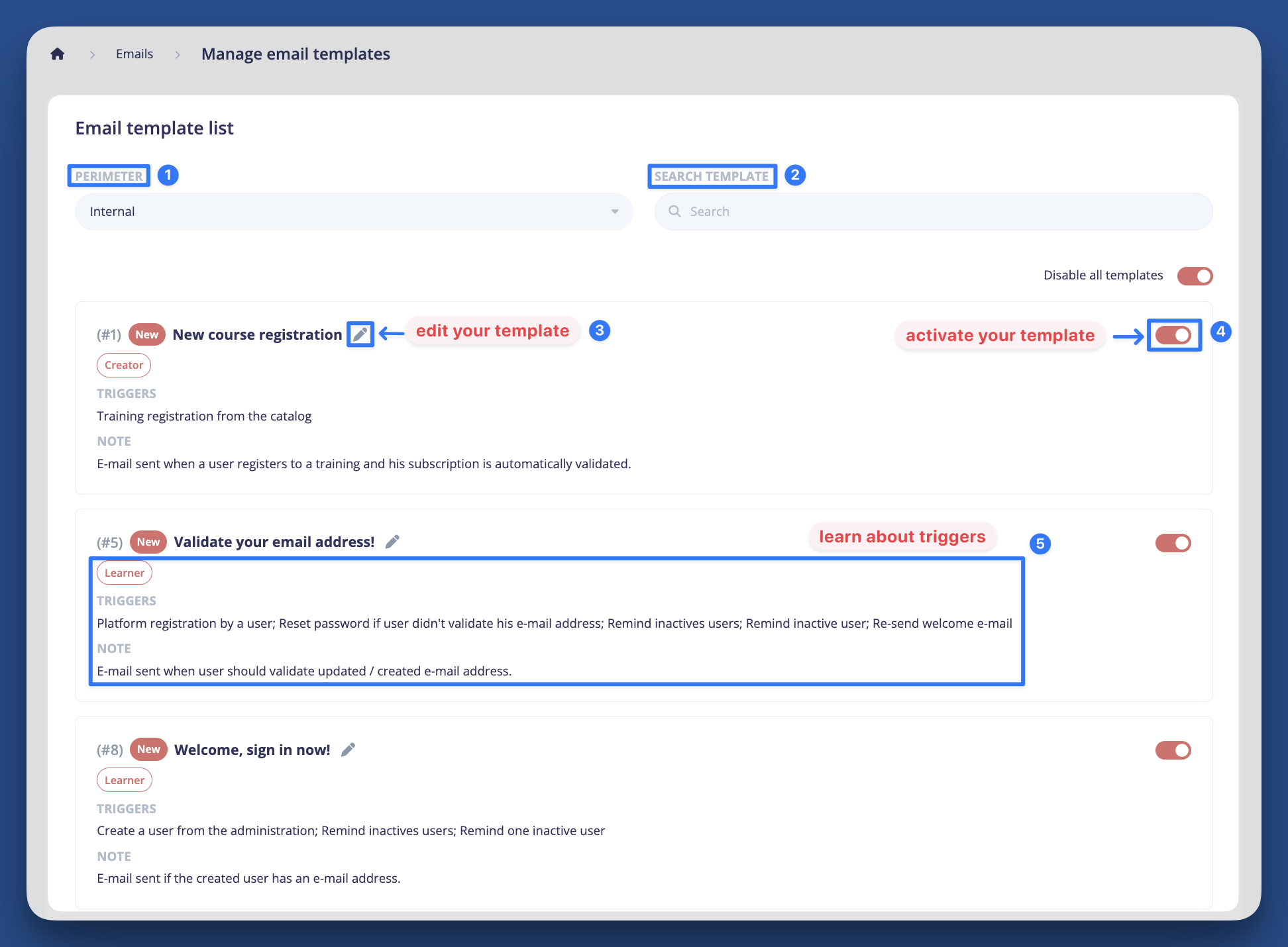
Edit Email Templates
Choose 'Manage Templates' in the 'Emails' section, then select a template to edit. You can modify the content, format, and incorporate dynamic variables for personalization.
Remember that you have a descriptive panel to help you indicating these 3 pieces of information: triggers, note, and recipients. This will help you understand what information will be extracted on the platform, which user actions will trigger automations, and what they will impact.
-
Use the memo to visualize automations
-
Edit the 5 main sections of your template
-
View available variables to copy-paste, non-editable !
-
Customize your template using text tools
Although it may seem obvious, we recommend testing your emails several times before starting your mass mailings.
Use 'reset template' if you have mixed up variables, which will allow you to start over. Note that variables cannot be modified or merged, they must be used as they are in their initial form.
Manage Email Flows and Notifications
Under the 'Enable and Disable' settings, check the box next to each template to enable or disable automatic sending.
Customize the email flow based on user actions to optimize engagement and information dissemination, with an appropriate strategy based on the targeted actors.
-
Issue: Emails are not being sent to recipients.
Solution: Check the email template settings and ensure that automatic sending is enabled. Verify that the recipient's email address is correct.
Issue: Custom changes to templates do not appear in sent emails.
Solution: Ensure to save changes after editing templates. If the issue persists, test the template to confirm changes and check the replacement settings. -
How can I ensure that emails are received by all users?
- Regularly update and verify email addresses in user profiles, and ensure that email settings are configured to match user preferences and requirements.
Can I customize emails for different groups of users?
- Yes, you can set different email templates and configurations for various groups of users such as learners, instructors, and administrators. - For additional help, submit a request:
[Rise Up Support Request]